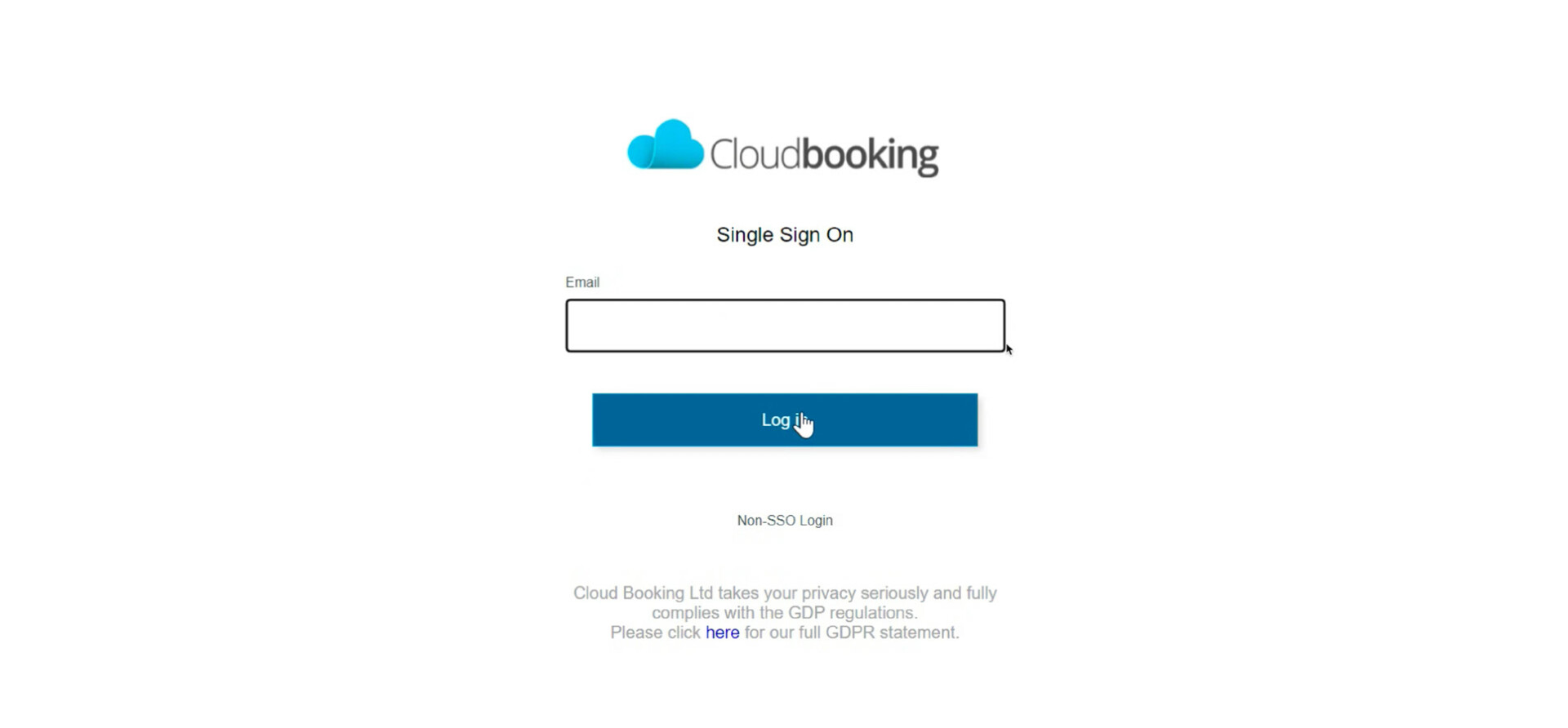
Login to Cloudbooking

Step 2
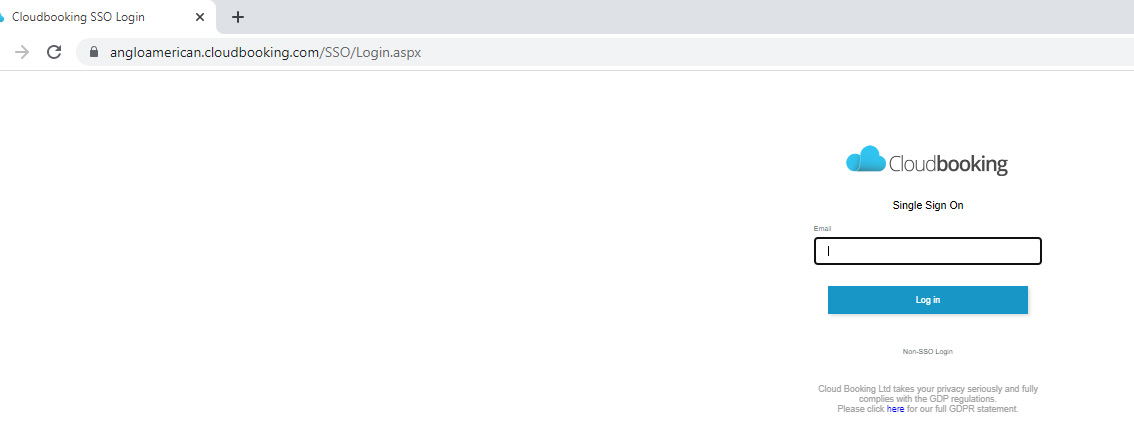
Type in your email address
Press on login.
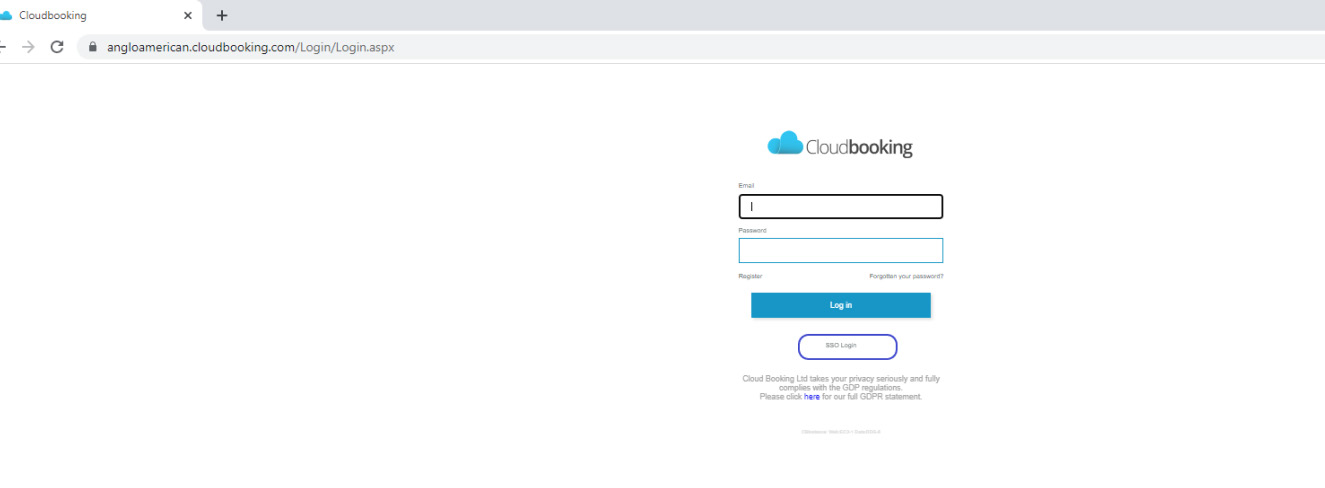
If you are presented with a login screen
as below please click on the SSO link and then log in.
Booking a Hotdesk
Follow the steps below to book your hot desk.
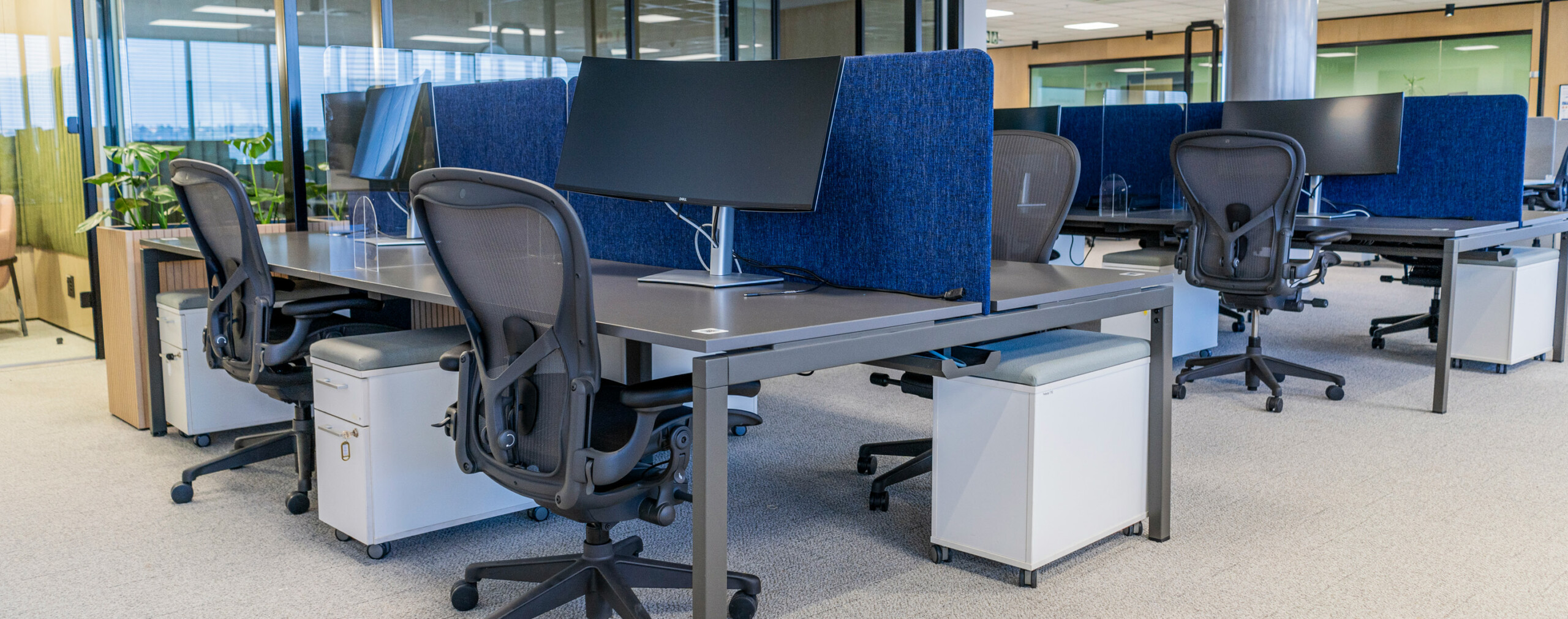
Take a look at the floor plan here to find a space that’s best suited for your needs.
Step 2
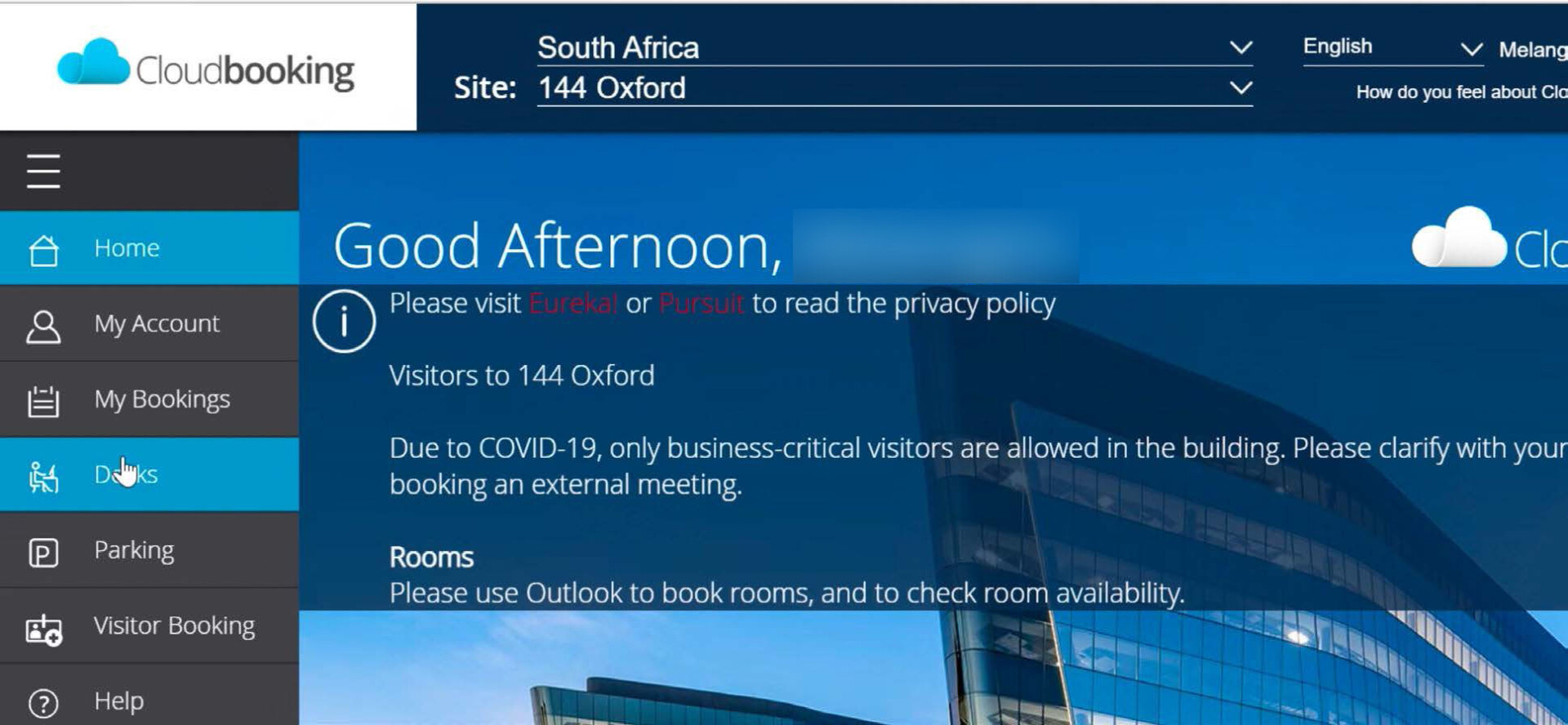
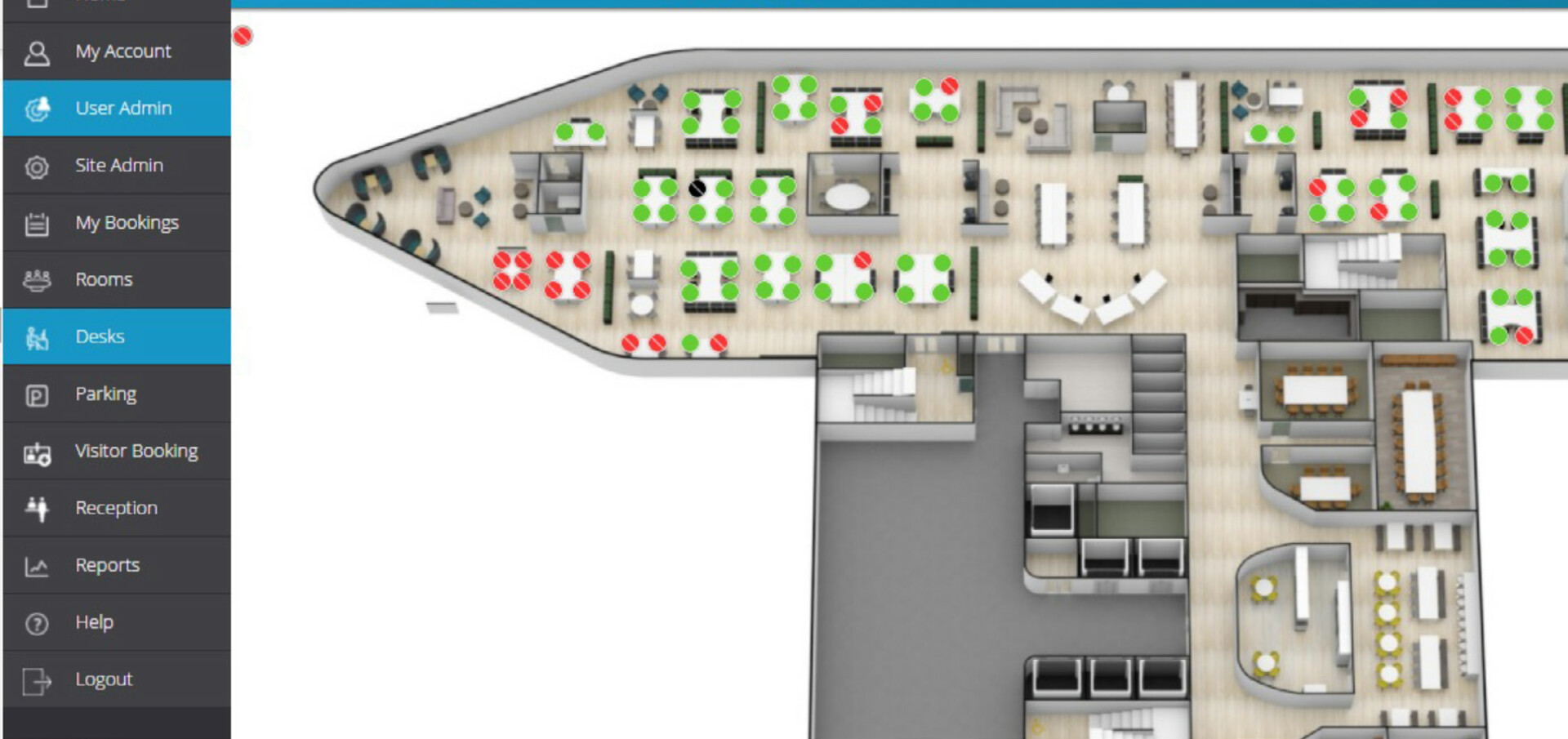
Select “Desks” in the left hand menu.
Step 3
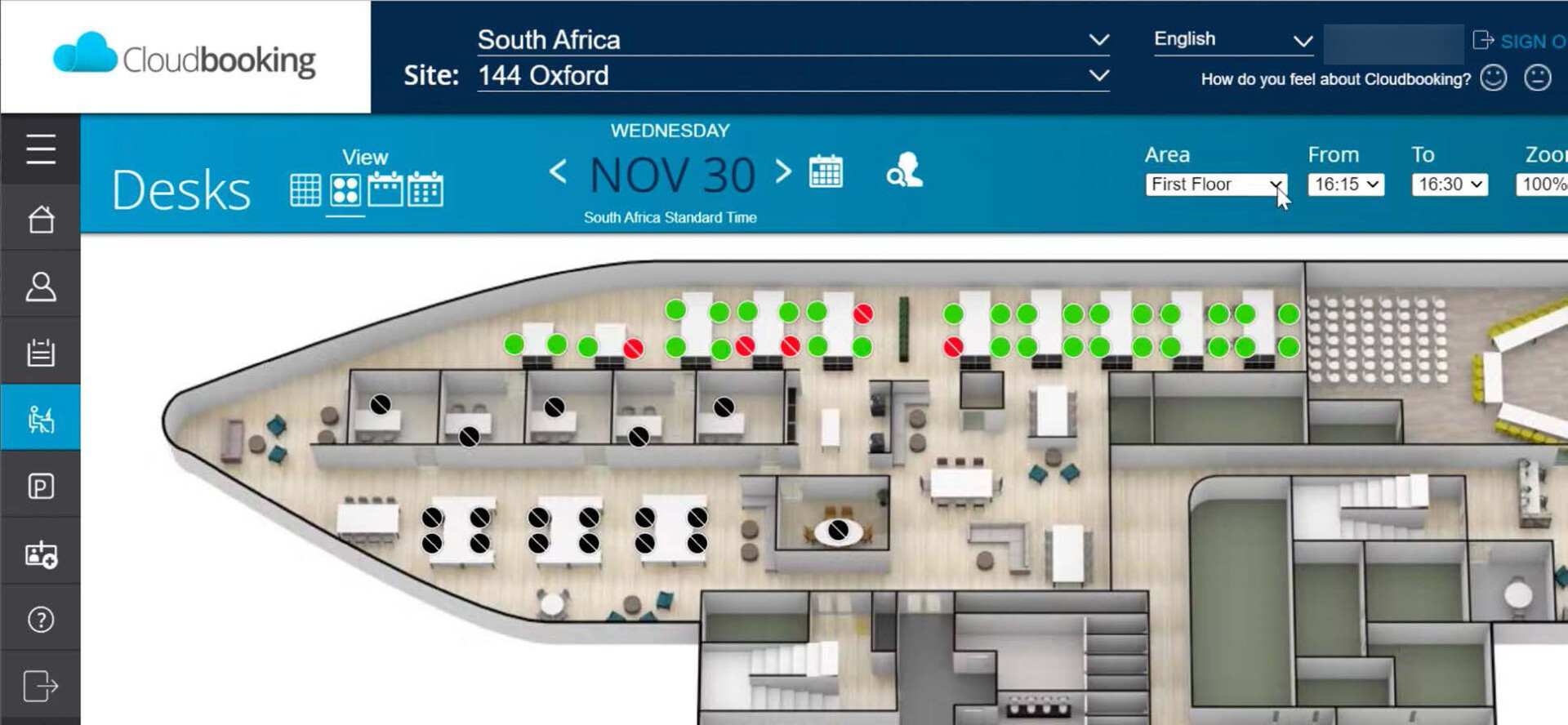
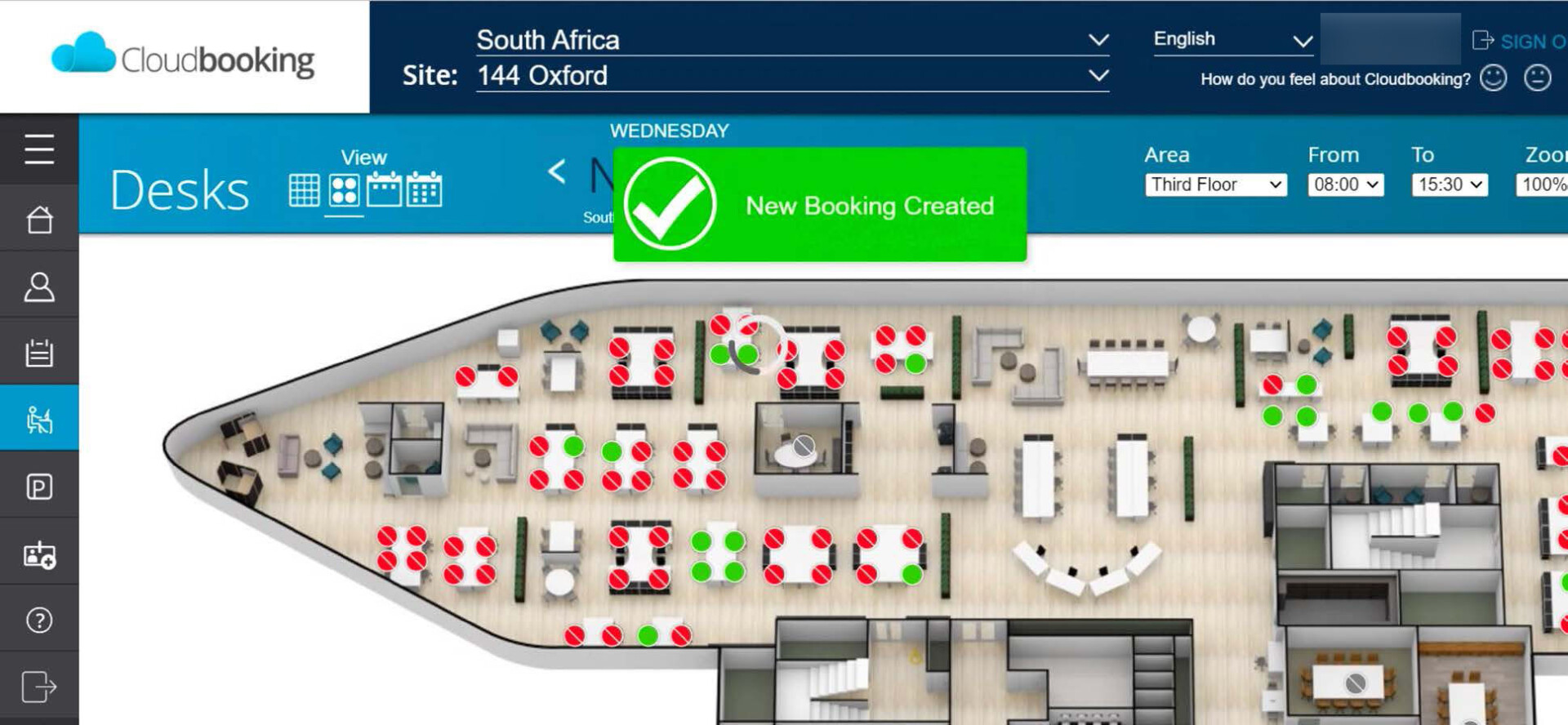
Select the floor you would like to book a desk on. This can be located in the top right hand corner of the screen.
(Kumba is on the second floor)

Step 4
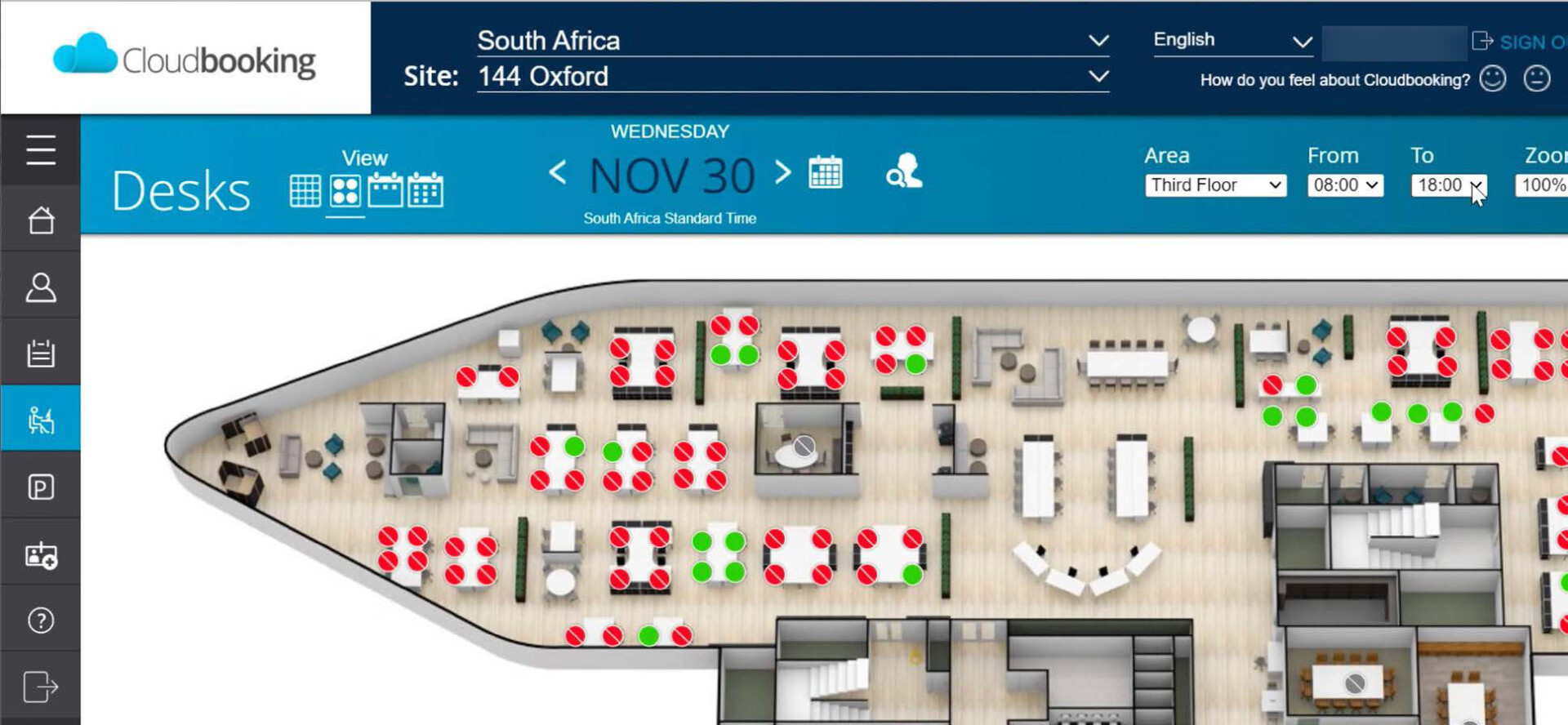
Select the time you would like to book a desk from and until. This can be located in the top right-hand corner of the screen.

Step 5
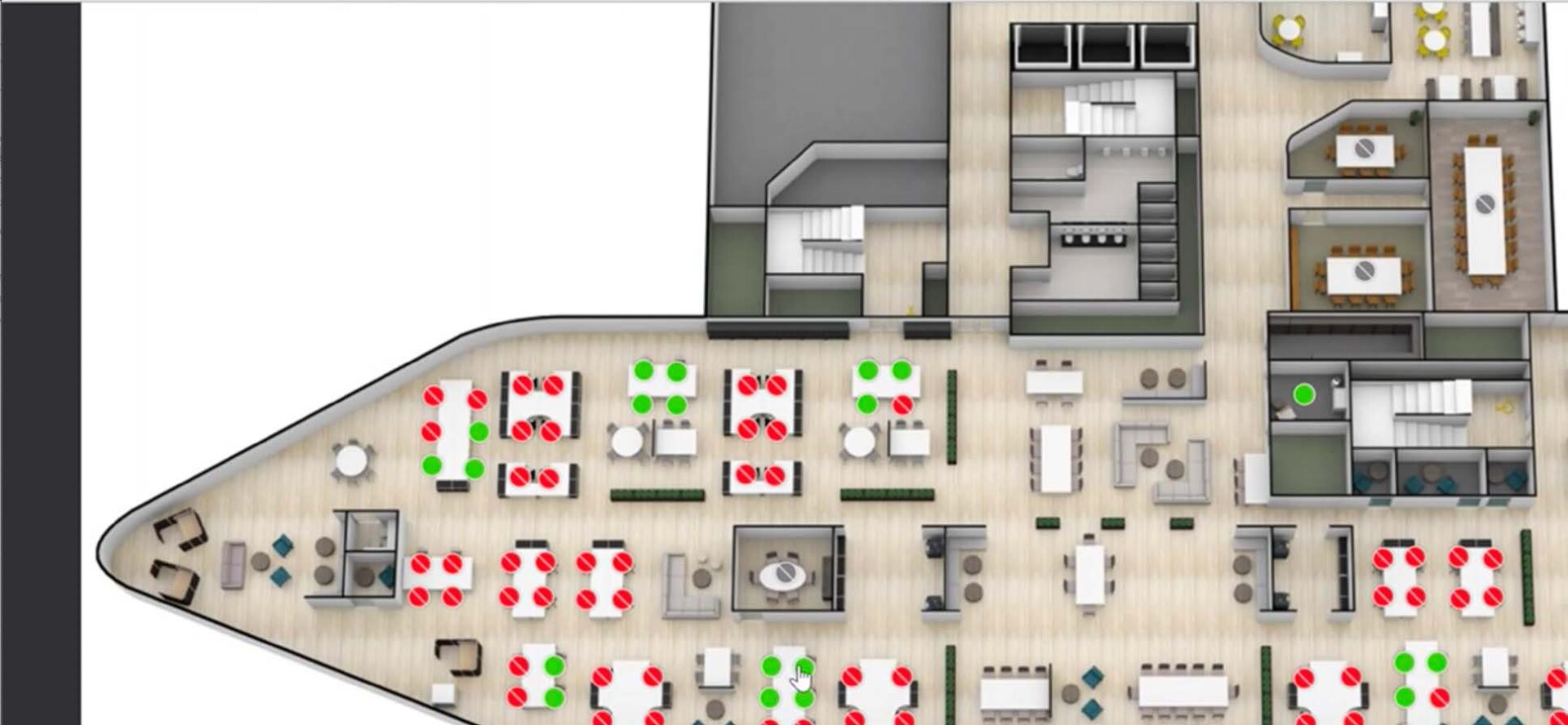
Select the desk you would like to reserve. You are able to navigate the floorplan. Green dots means the desk is available.

Step 6
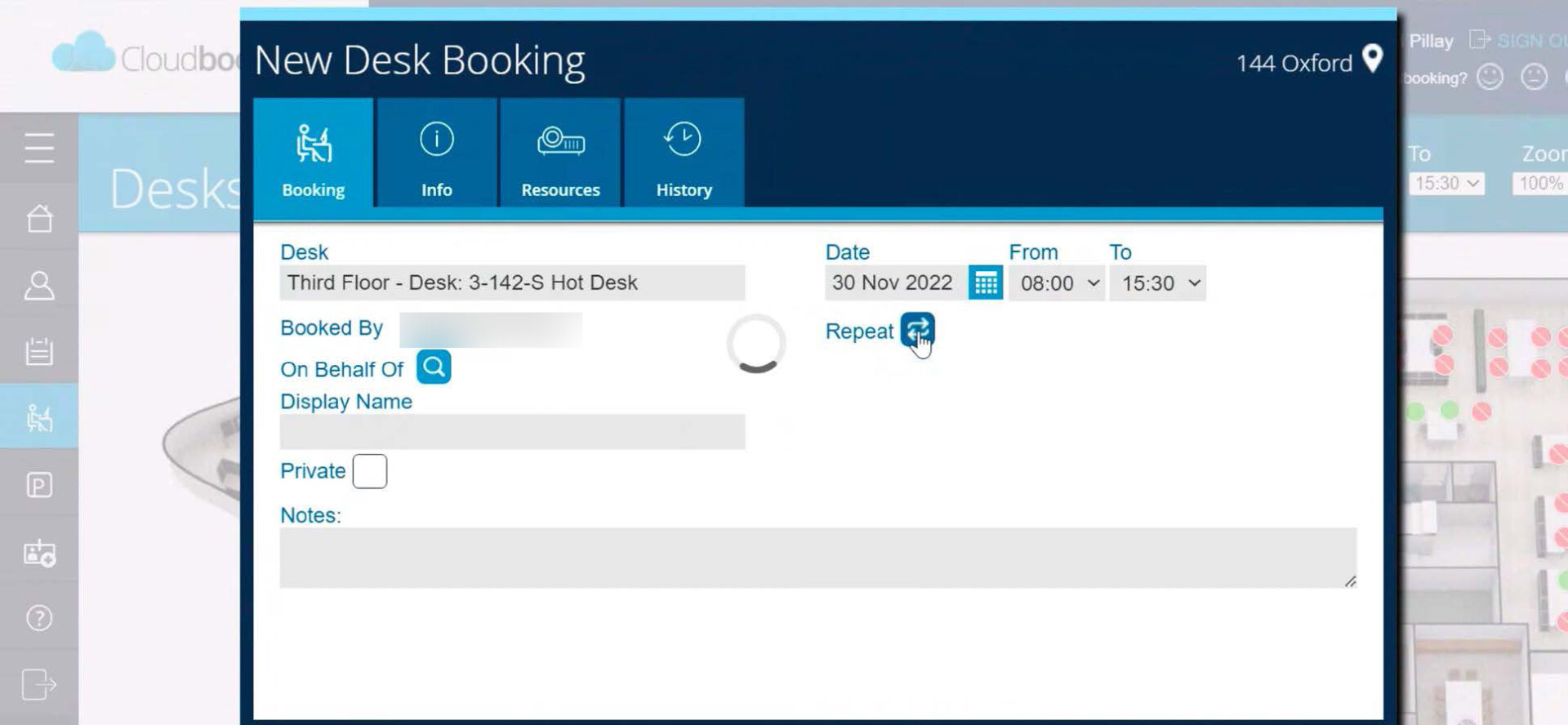
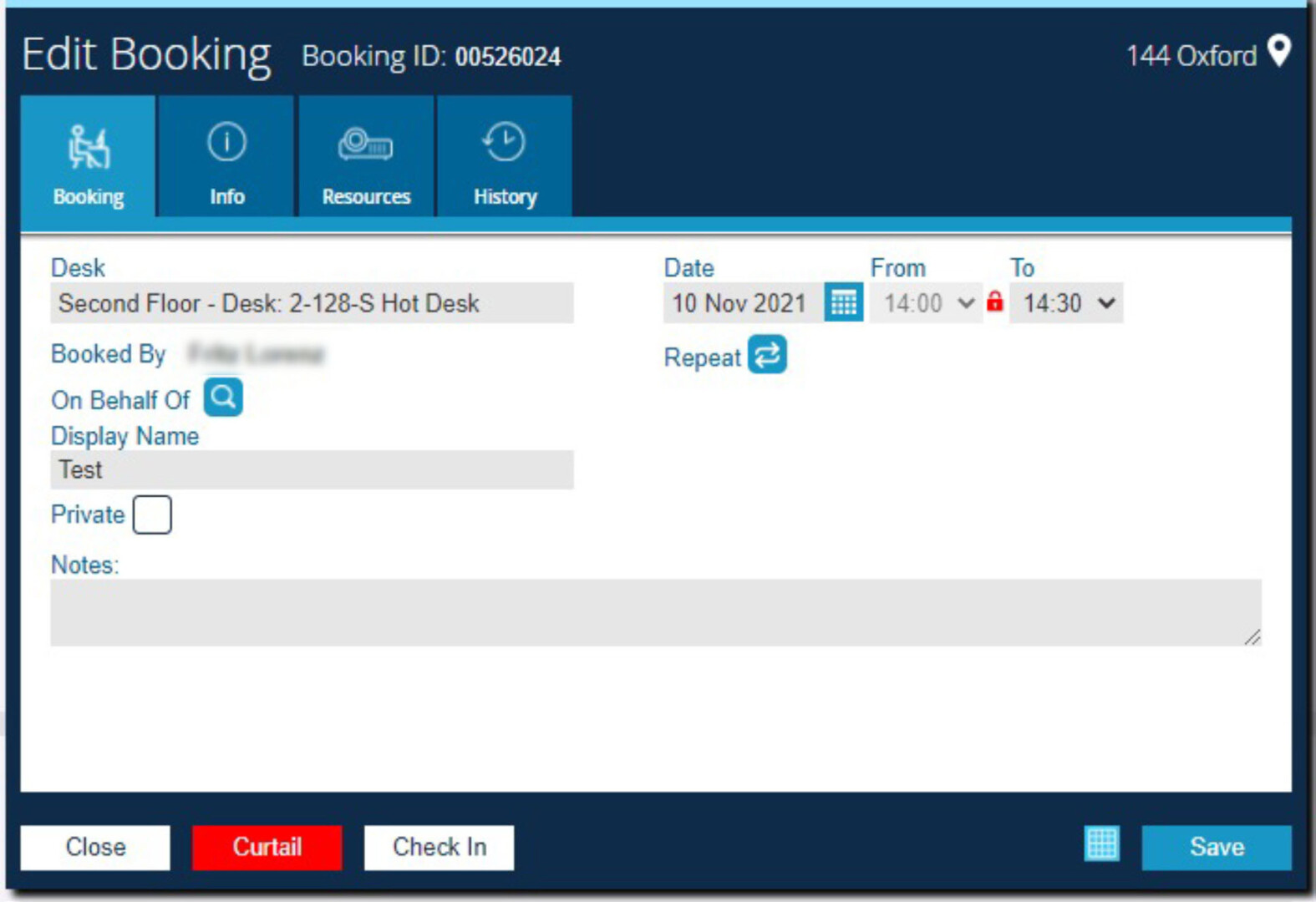
A pop-up window will appear with the details of the booking. Here you are able to repeat the booking up until a certain date. Please ensure you are able to utilise the desk on those days.
Remember, desks are released 30 minutes after the time of the booking if you have not checked in.

Step 7
Your booking is now confirmed. Please remember to check in on arrival to avoid curtailing.
Checking in to your Hotdesk
Often desk bookings are made and not utilised, making the desk unavailable for other employees. For this reason an Auto Curtail function will be implemented. This allows for the deletion of a desk booking if the user has not checked-in at that specific desk within 30 minutes of the desk booking starting time. There are 2 ways to check-in.
Step 1
Open your browser and navigate to the Cloudbooking Log on Page

Step 2
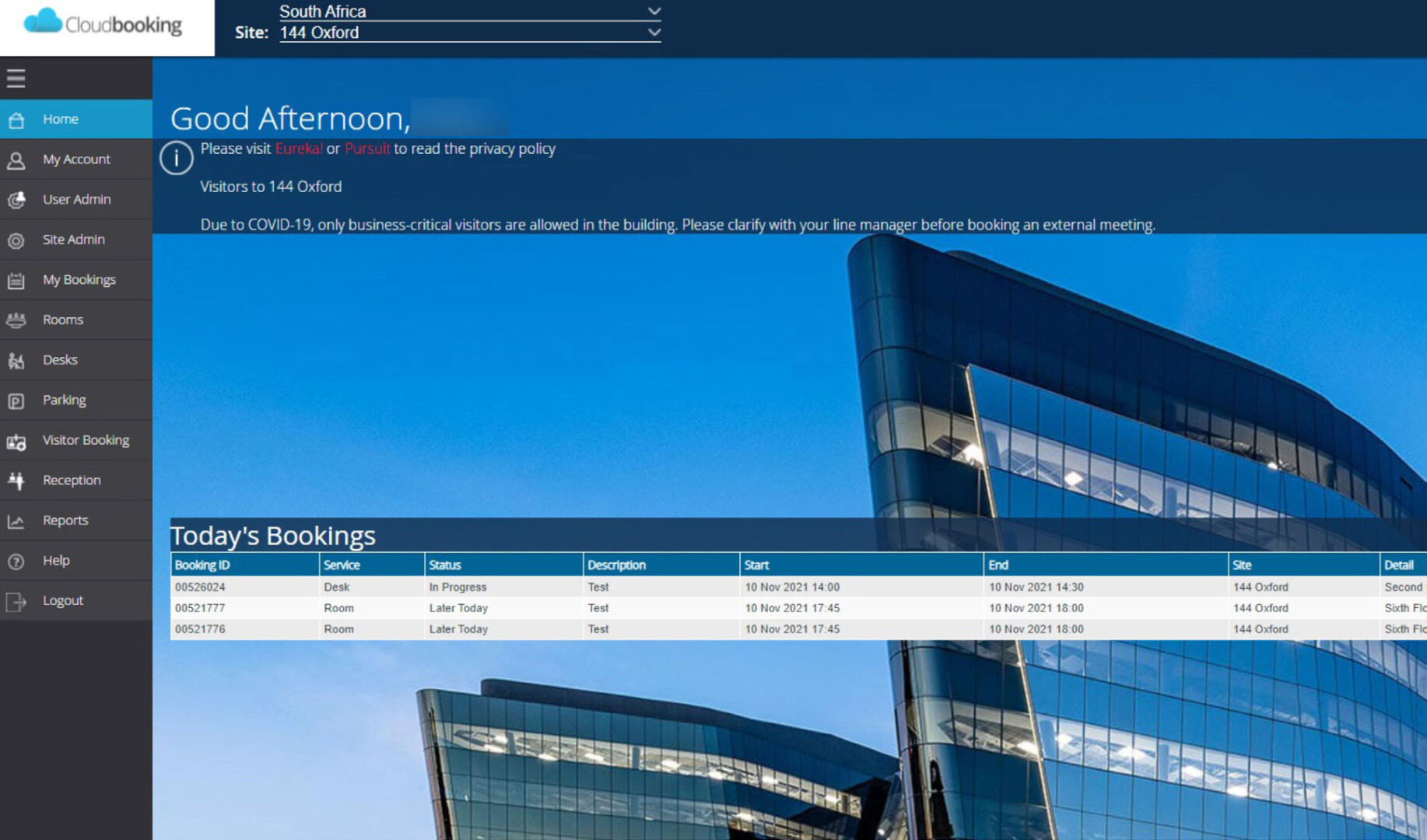
Locate your Booking using the My Bookings tab
Step 3
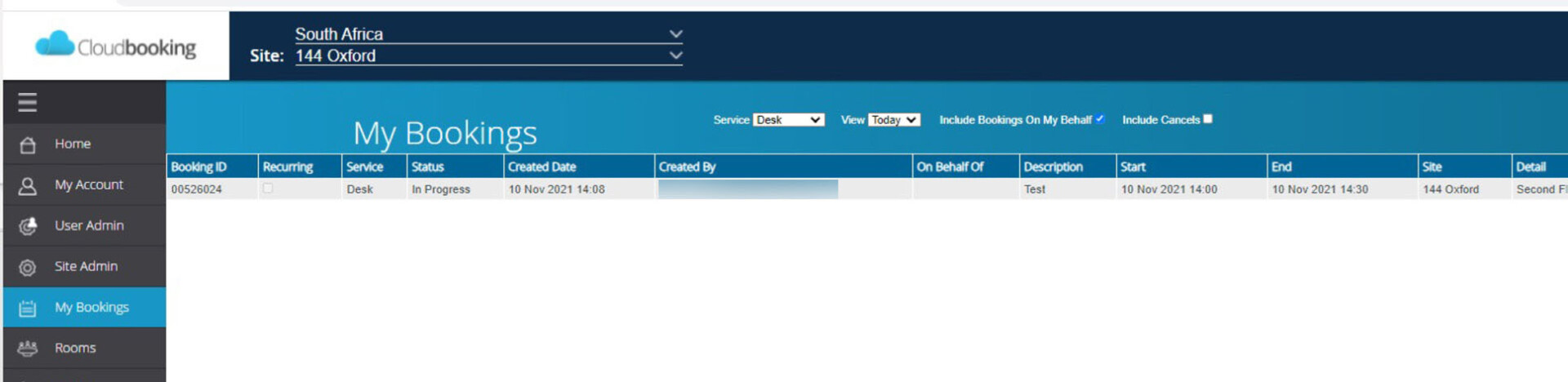
Select the Service as Desk, the View as Today and click on the relevant booking.

Step 4
You can also navigate to your booking using the Desks tab and clicking on the desk that you have booked.

Step 5
Now that your booking is displayed, click on Check-In. A message will appear that you are checked in.

Step 1
Open the Cloudbooking Mobile App.
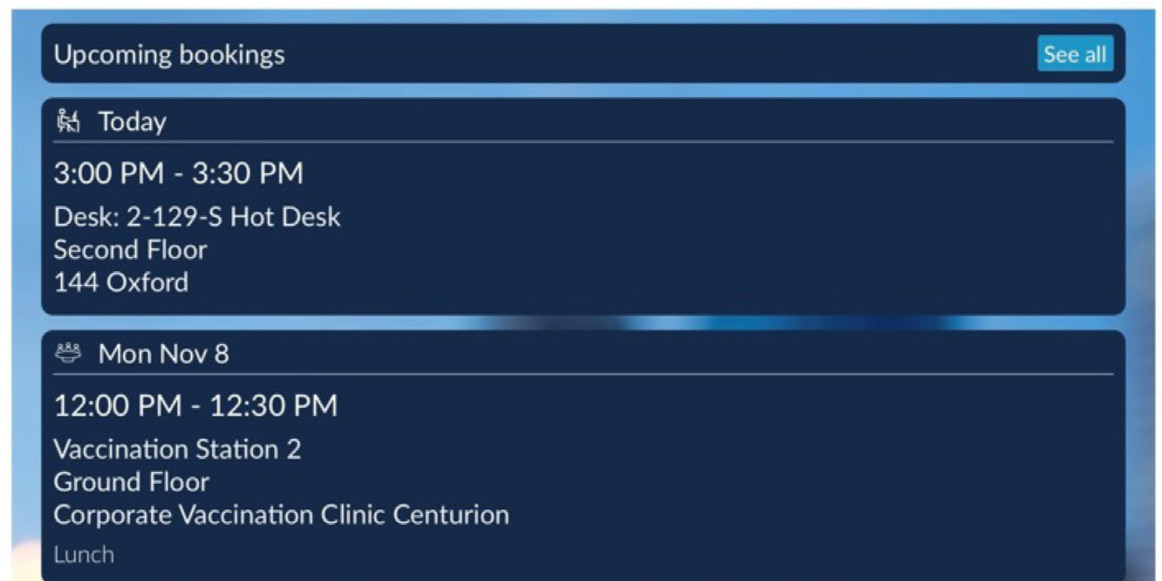
The Home Screen will display Upcoming
Bookings.
Click on the relevant desk booking.
Step 2
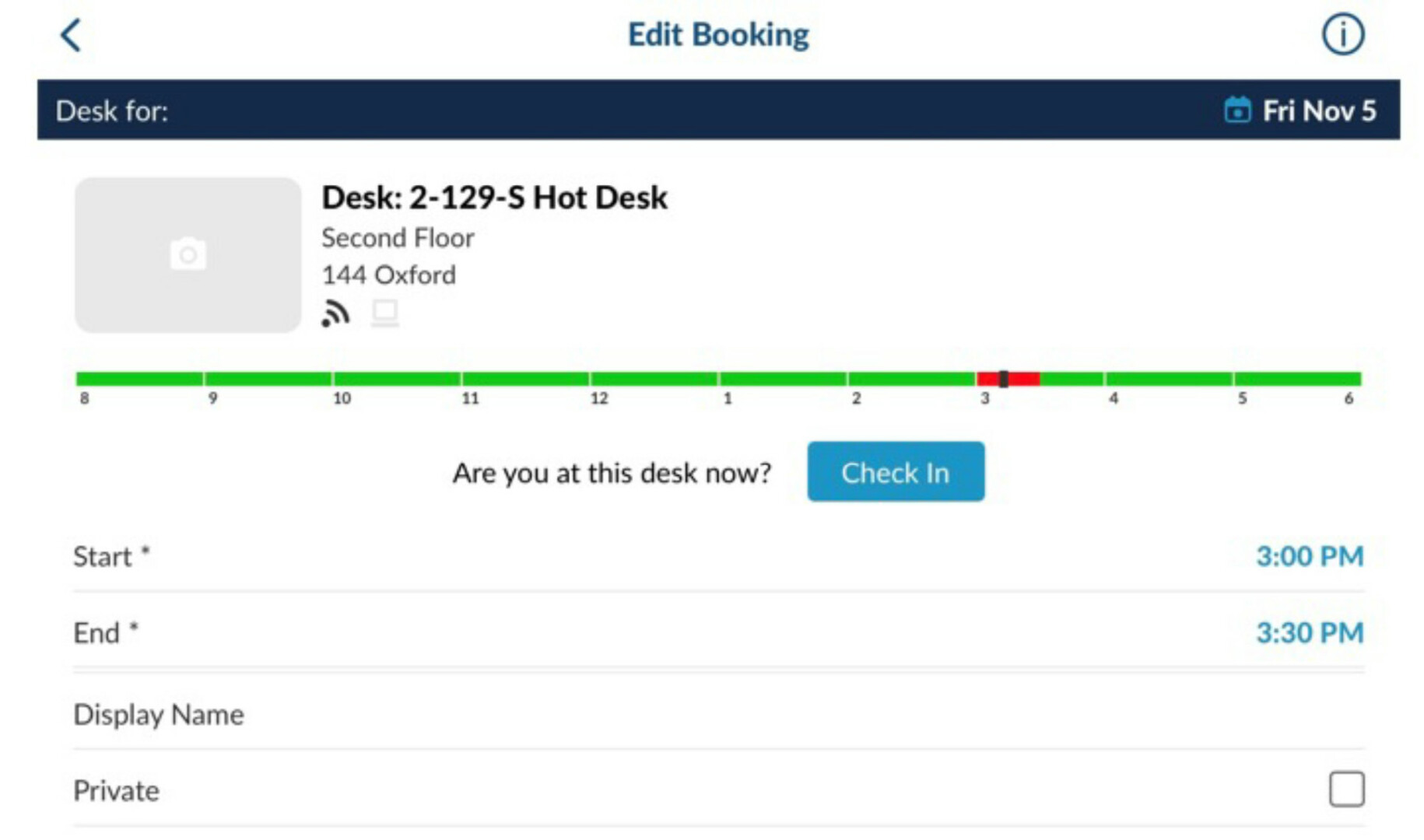
Once the booking has opened click on Check-in. Check-in is completed.